 Annotension
Label your first images
Create a project, draw boxes, review the images, and export your labels.
Start with a small image folder you are allowed to annotate. Install Annotension first, then open it from Applications. No source checkout is needed.
Create a project
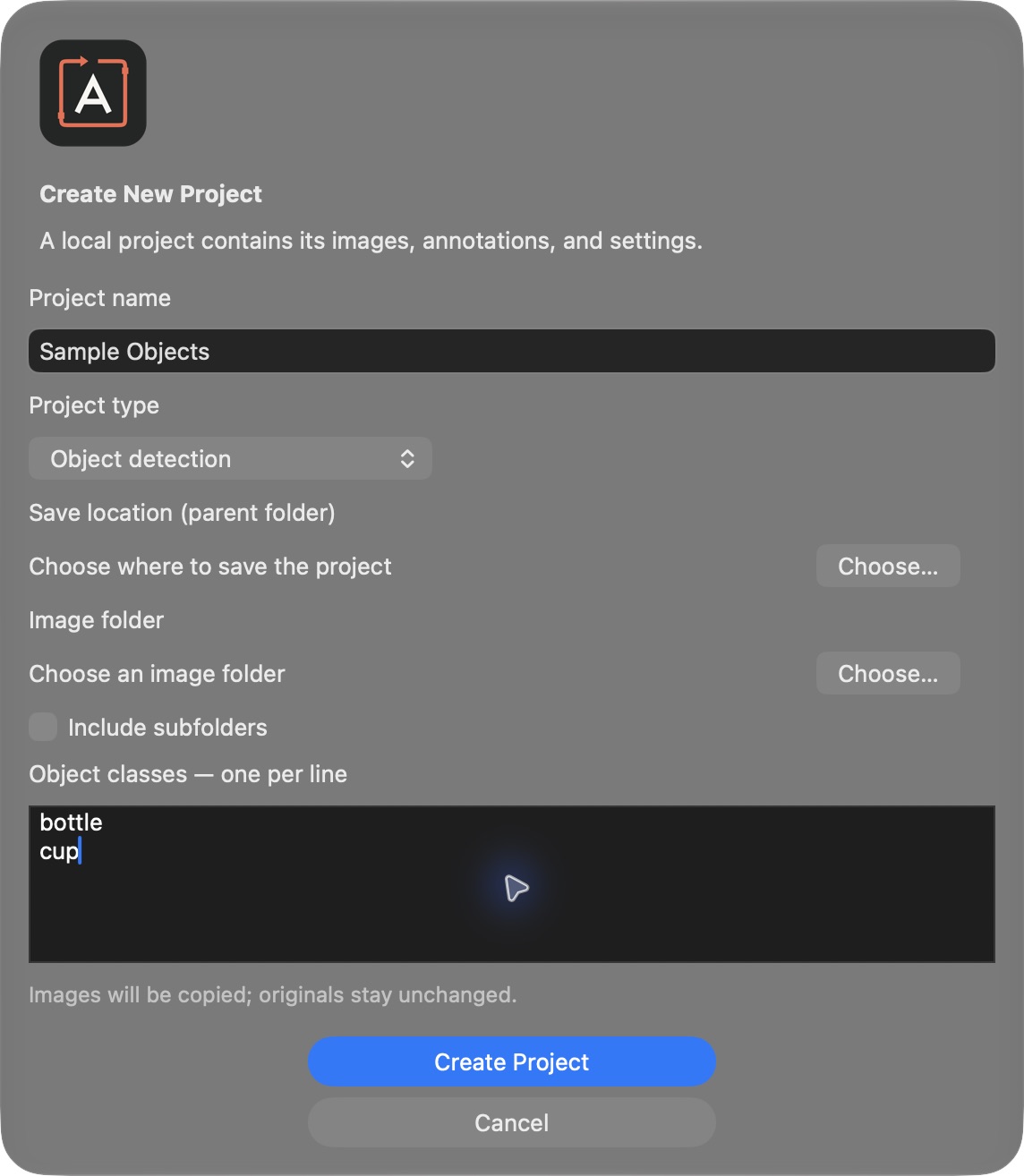
- Choose File → New Project… (⌘ N).
- Name it
Sample Objectsand leave Object detection selected. Segmentation is unavailable. - Choose a parent save folder outside your source image folder, then choose the image folder.
- Enter classes such as
bottleandcup, one per line. Choose Create Project and wait for copying to finish.
Folders and subfolders
You can also start with Create New Project… in the project browser. Enable Include subfolders for nested images; it is off by default.
Annotension creates a new project folder and refuses an existing folder with the same name. It contains project.annotension and images/. Your source images stay unchanged.
Draw around each object
For a larger batch, group similar images before labeling to work through related scenes together.
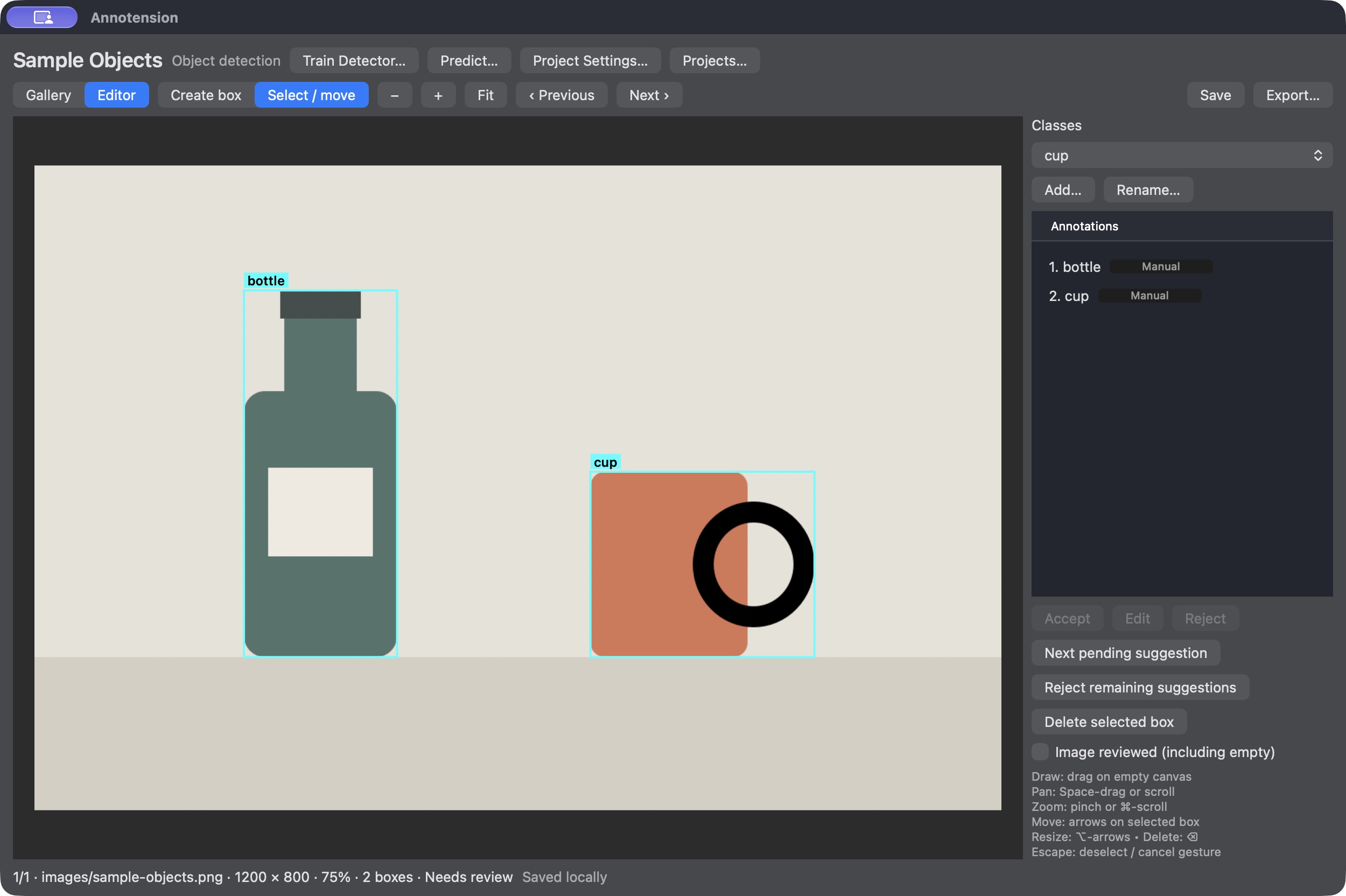
- Click an image in the gallery. Choose its object class in the sidebar.
- Choose Edit → Create box tool (⌘ B), then drag across the object.
- Select a box to move it. Drag a handle to resize it, or choose another class to change its label.
Fit boxes closely around visible objects and use the same labeling rules throughout the dataset. Delete removes the selected box; Edit → Undo reverses a mistake.
Navigation and keyboard shortcuts
- Fit image
- ⌘ 0
- Zoom
- Pinch or Command-scroll
- Pan
- Space-drag or scroll
- Deselect
- Escape
- Previous / next
- ⌘ [ / ⌘ ]
- Gallery / editor
- ⌘ G / ⌘ D
Check the whole image
Inspect every box and class. Look for missed objects. Then check Image reviewed (including empty).
An image with no target objects still needs inspection and review. This makes it a verified negative. Leaving it empty does not approve it.
Editing boxes clears review. Inspect and approve the image again. If you use prediction, resolve all pending suggestions before image approval.
Autosave and reopening
Changes autosave. Resolve any save error before switching projects or quitting. Reopen through File → Open Project… or the project browser.
Try the review state
A guide illustration. These buttons do not change your project.
Needs review
This image stays out of exports until you inspect it and mark it reviewed.
Export reviewed data
- Choose File → Export… (⌘ E).
- For a small first test, choose YOLO labels only.
- Choose Choose Destination…, then a parent output folder. Annotension creates a fresh export subfolder.
- Wait for Export Complete and choose Show in Finder.
Only reviewed images are included. A reviewed negative has an empty label file.
What “labels only” includes
The export includes orientation-corrected PNGs, matching normalized text labels, class names, filename mapping, and an export-time project snapshot. There is no train/validation split.
Training-ready YOLO and COCO exports
Choose YOLO training dataset or RT-DETRv2 / COCO detection for a training split. These require at least two distinct reviewed source files and reviewed object annotations.
Choose a validation share and seed for a new manual project. Supplied splits from imported datasets are preserved. Byte-identical copies stay together, so actual counts can differ from the requested share. Inspect split coverage before training.
Export folder
├── images/         PNG images
├── labels/         YOLO labels
├── classes.txt
├── filenames.json
└── project-snapshot.json
Keep the complete project
Back up the project folder and its images. Autosave keeps the preceding valid metadata as project.annotension.backup; it does not replace a complete project backup.
Changed sources or incomplete exports
Avoid changing or replacing project images outside Annotension. Missing or changed sources can block editing or export.
Never train from an export folder containing INCOMPLETE.txt. It marks an unfinished, failed, or cancelled export. Export again to obtain a completed dataset.
Ready to label more images with model suggestions? Continue with the local training and review loop.
Return to guide home →